
In a Sitecore project, we had already enabled Okta federated authentication following the excellent guide from XCentium Sitecore IdentityServer + Okta – Federated Authentication.
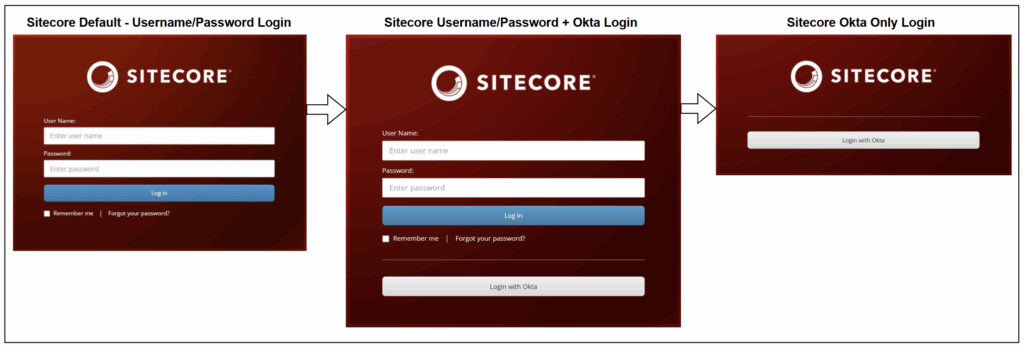
Okta was working fine, but we noticed that on the Sitecore login screen both options were still visible
- Traditional username/password login
- Okta single sign-on
From a security perspective, we didn’t want to allow login with username and password i.e. only Okta should be used for authentication. To tighten security, we decided to remove the username/password option and make Okta the only login method available.
At first, I thought this will be just a quick config change, but it took me some digging and testing. I want to share here what I found, so maybe it will save someone else some hours.
Investigation: Where I Found the Local Login Setting
The Sitecore login screen is controlled by IdentityServer. When I checked the login view file in Identity Server, which is a separate Web Application you will find in IIS
/sitecore/Sitecore.Plugin.IdentityServer/Views/Account/Login.cshtml
I noticed the following piece of code:
Model.EnableLocalLogin
This is what decides if username/password login shows up. So the big question was where can I set EnableLocalLogin = false in IdentityServer configs?
Option 1: Update IdentityServer Config File
In identityServer.xml:
/sitecore/Sitecore.Plugin.IdentityServer/Config/identityServer.xml
You can configure the following:
<AccountOptions>
  <AllowLocalLogin>false</AllowLocalLogin>
</AccountOptions>
This is the cleanest option, works across environments, and does not require editing views.
Option 2: Hardcode in the View
If you want to directly disable it at the view level, you can modify the login view file:
/sitecore/Sitecore.Plugin.IdentityServer/Views/Account/Login.cshtml
Add:
@{
    Model.EnableLocalLogin = false;
}
This will force the username/password option to stay hidden.
Pros & Cons of Both Approaches
| Type | Pros | Cons |
|---|---|---|
| Config-based (identityServer.xml) | Cleaner and officially supported. Can be managed per environment. No need to touch view files. | Requires restart of IdentityServer after change. Config location is not well documented. |
| View-based (Login.cshtml) | Very quick to test and verify. You can add custom logic if needed No config digging needed. | Hacky (modifying Sitecore’s view files). Risk of being overwritten during upgrades. Harder to maintain across environments. |
Deploying the Change
Regular Sitecore Installation
- Navigate to the IdentityServer site folder (usually under IIS root).
Example:C:\inetpub\wwwroot\<your-identityserver-site>\sitecore\Sitecore.Plugin.IdentityServer\ - Depending on the approach you choose:
- Config method → Edit
Config/identityServer.xmland set<AllowLocalLogin>false</AllowLocalLogin>. - View method → Edit
Views/Account/Login.cshtmland setModel.EnableLocalLogin = false;.
- Config method → Edit
- Restart the Sitecore IdentityServer application (IIS site recycle).
Sitecore Containers
When working with Sitecore Docker containers, you can’t just edit files inside the running container — you need to mount or override them during the build.
For the view-based method, place your modified login view at:
docker/build/id/configurations/sitecore/Sitecore.Plugin.IdentityServer/Views/Account/Login.cshtml
Then rebuild your identityserver container so that this file is copied into the right place inside the container.
Steps:
- Add your modified file to:
docker/build/id/configurations/sitecore/Sitecore.Plugin.IdentityServer/Views/Account/Login.cshtml - Rebuild the container:
docker-compose build identity - Restart containers:
docker-compose up -d
Now, your modified file will be part of the container image and used consistently across environments.
Note
After applying changes (both regular and containers), you need to restart IdentityServer for the settings to take effect.
Hashtags
#Sitecore #IdentityServer #Okta #FederatedAuthentication #SitecoreTips #SitecoreDevelopment #SitecoreDocker #SitecoreConfig