
One of the challenges we faced while running Sitecore in Azure Kubernetes Services (AKS) using Docker containers was with the Coveo for Sitecore module/connector. The Coveo connector login was not persisting.
Each time the CM pod restarted whether after a deployment or when the Sitecore app pool recycled, the module/connector would get logged out. And once it’s logged out, it won’t index content automatically and you would have to manually login into Coveo and configure it again. Since it could happen at anytime therefore you were always in doubt and checking to see if it is still logged-in.
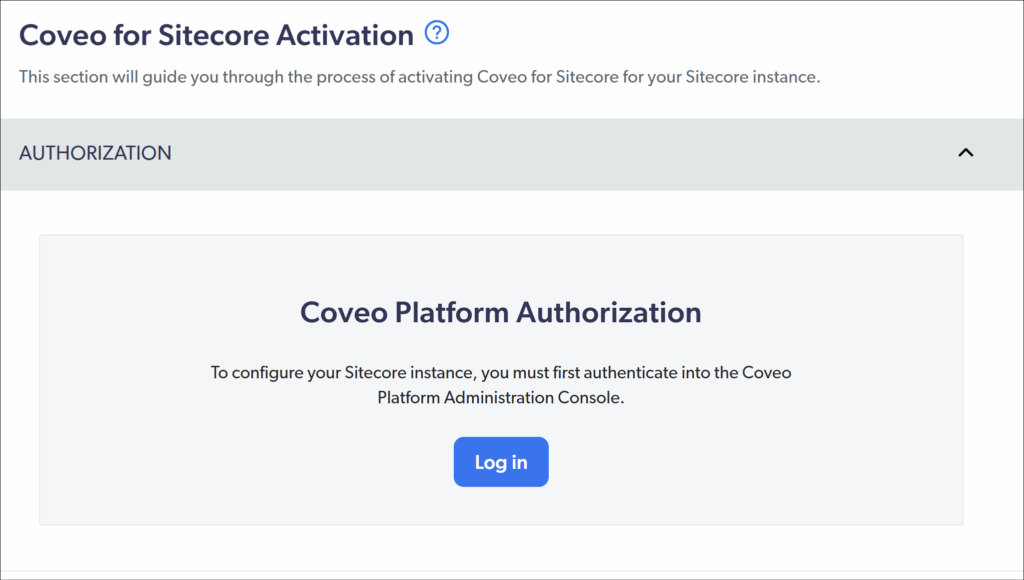
We spent quite a bit of time trying to understand why this was happening. We also reached out to Coveo Support, but as is often the case with containerized setups, there wasn’t much help there. So we had to figure it out ourselves.
Credit goes to my colleague Kevin Suarez from XCentium, who actually figured out what was going on. I’m just documenting it here so others don’t have to go through the same pain.
What’s Actually Happening
For some weird reason Coveo stores its logged-in state in configuration files instead of database which seem like an obvious choice for persistence. In a traditional Sitecore setup, that is kind of ok but in a Docker-based setup running in AKS, anything written at runtime doesn’t stick.
When a container (or pod) restarts, it goes back to the original image state. So if those config changes (like the login state) are not part of the image or deployment, they get wiped out. This is why the Coveo module/connector kept logging out.
What We Did to Fix It
The fix is straightforward once you understand the problem you just need to make sure those config files (after Coveo login and configuration) are copied from the server and are part of your deployment or docker image generation.
Step 1: Grab the Right Files from Sitecore CM Server
After logging into Coveo for Sitecore, go to the Sitecore CM server and locate these folders:
App_Config/Include/CoveoModules/Coveo
These contain the configuration that holds the Coveo authenticated state.
If your instance is running in AKS and you don’t have direct access, you can use Sitecore Package Designer to pull them down. Just add these folders dynamically and download the package.
Step 2: Include Them in Your Deployment or Docker image generation for CM server
Once you have the files, the key is to make sure they’re always there when your container starts.
You can do this in one of two ways:
- Add them to your Docker build so they get copied into the image
- Or include them in your solution so they get deployed as part of your pipeline
Either way, the goal is the same: these files should not be created at runtime—they should already exist when the container starts.
Important: Handle This Per Environment
One thing that’s easy to mis is that it is not a one-time setup for all of your environments. You need to do this separately for each environment (Dev, QA, Prod, etc.). The Coveo configuration and the login tied to it can differ between environments, so you shouldn’t reuse the same files everywhere.
A couple of ways to handle this cleanly:
- Maintain separate versions of these config folders per environment
- Use a copy step during your Docker build to bring in the right files based on the environment
- Or use Sitecore’s
env:require/ patching approach so only the correct configs are applied/included per environment
Whichever approach you choose, the key is to make sure each environment gets its own correct set of config files.
Finally a sigh of relief
Once we included these folders as part of the deployment:
- The Coveo connector stayed logged in even after pod restart or Sitecore App pool recycles stopped causing issues
- Coveo Indexing continued to work without any manual intervention