
A while back, I worked on a large-scale Sitecore to another CMS migration project which came with lots of constraints and challenges. Due to the highly sensitive nature of the system, I wasn’t given direct access to the server or filesystem. I was only given Sitecore admin access that too after lots of convincing and negotiations. This meant that I would need to find creative ways to get the job done using only the Sitecore interface and tools available within it.
Despite the challenges and limitations, we successfully completed the migration. I thought it would be a good idea to document and share some of the tools and scripts that helped along the way starting with something critical for any large Sitecore instance i.e. exporting media library items.

The Challenge of Exporting Sitecore Media Items
The Sitecore Media Library often houses thousands of assets like images, documents, PDFs, and more. Depending on the project, its size can range from a few gigabytes to hundreds. Exporting the entire media library in one go isn’t always feasible. Specially in my cases the script would most definitely timeout, even if it succeeded it would be impossible to package and download large amount of data via Sitecore package.
To tackle this challenge, I broke the export process into manageable chunks. The first step being understanding the size of the media library and more importantly, the size of each folder within it. This helps plan a chunked export strategy, reducing the risk of timeouts and failures.
Why Measure Folder Sizes?
Having detailed insights into the media library structure allows you to:
- Identify the heaviest folders first
- Prioritize smaller chunks for faster exports
- Avoid script timeouts by staying under size limits
- Plan batch exports over time instead of a single monolithic transfer
What the Script Does
This tool is designed to:
- Traverse the media library tree starting at any given path
- Calculate the total size of files in each folder
- Display the size of individual folders in a readable format
- Help you make informed decisions when creating export batches
If your media library is relatively small (under 5GB), you can run it at the root level. Otherwise, it’s better to run it on individual folders to avoid timeouts or causing the server to go down.
ASP.NET Example to Calculate Sitecore Media Library Size
You will need to have Sitecore admin access to run this. You can also use code-behind i.e. but that require deployment where-as this method gives you more flexibility.
<%@ Page Language="C#" AutoEventWireup="true" Inherits="System.Web.UI.Page" %>

<%@ Import Namespace="Sitecore.Data" %>
<%@ Import Namespace="Sitecore.Data.Items" %>
<%@ Import Namespace="Sitecore.Resources.Media" %>
<%@ Import Namespace="System.Collections.Generic" %>
<%@ Import Namespace="System.Linq" %>

<!DOCTYPE html>
<html lang="en">
<head>
    <meta charset="UTF-8" />
    <title>Sitecore Media Library Size Calculator</title>
</head>
<body>
    <h1>Calculate Media Library Size</h1>
    <form id="form1" runat="server">
        <table>
            <tr>
                <td>
                    <label for="database">Database (e.g., master):</label>
                </td>
                <td>
                    <asp:TextBox ID="databaseTextBox" Width="500px" Text="master" runat="server"></asp:TextBox>
                </td>
            </tr>
            <tr>
                <td>
                    <label for="mediaRootPathTextBox">Media Library Root Path(s):</label>
                </td>
                <td>
                    <asp:TextBox ID="mediaRootPathTextBox" Width="500px" Rows="5" TextMode="MultiLine"
                                 Text="/sitecore/media library" runat="server"></asp:TextBox>
                </td>
            </tr>
        </table>
        <br />
        <button type="submit" runat="server" onserverclick="CalculateMediaLibrarySize_Click">Calculate Size</button>
    </form>
    <br />
    <asp:Literal ID="ltResult" runat="server"></asp:Literal>
</body>
</html>

<script runat="server">
    protected void CalculateMediaLibrarySize_Click(object sender, EventArgs e)
    {
        string databaseName = databaseTextBox.Text.Trim();
        string rawPaths = mediaRootPathTextBox.Text.Trim();

        if (string.IsNullOrEmpty(databaseName) || string.IsNullOrEmpty(rawPaths))
        {
            ltResult.Text = "<p class='error'>Please provide the Database and at least one Media Library Root Path.</p>";
            return;
        }

        try
        {
            Database db = Sitecore.Configuration.Factory.GetDatabase(databaseName);
            string[] paths = rawPaths.Split(new[] { '\r', '\n' }, StringSplitOptions.RemoveEmptyEntries);
            List<string> results = new List<string>();

            foreach (string path in paths)
            {
                string trimmedPath = path.Trim();
                Item mediaRoot = db.GetItem(trimmedPath);

                if (mediaRoot == null)
                {
                    results.Add(string.Format("<p class='error'>Media root not found at: {0}</p>", trimmedPath));
                    continue;
                }

                long totalSize = CalculateMediaSize(mediaRoot);
                results.Add(string.Format("<p class='success'>Size for <strong>{0}</strong>: {1}</p>", trimmedPath, FormatSize(totalSize)));
            }

            ltResult.Text = string.Join("<br/>", results.ToArray());
        }
        catch (Exception ex)
        {
            ltResult.Text = string.Format("<p class='error'>An error occurred while calculating size: {0}</p>", ex.Message);
        }
    }

    private long CalculateMediaSize(Item rootItem)
    {
        long totalSize = 0;
        IEnumerable<Item> mediaItems = rootItem.Axes.GetDescendants().Where(IsMediaItem);

        foreach (Item mediaItem in mediaItems)
        {
            MediaItem media = new MediaItem(mediaItem);
            totalSize += media.Size;
        }

        return totalSize;
    }

    private bool IsMediaItem(Item item)
    {
        return MediaManager.GetMedia(item) != null;
    }

    private string FormatSize(long bytes)
    {
        const double KB = 1024;
        const double MB = KB * 1024;
        const double GB = MB * 1024;

        if (bytes >= GB)
            return string.Format("{0:F2} GB", bytes / GB);
        else if (bytes >= MB)
            return string.Format("{0:F2} MB", bytes / MB);
        else if (bytes >= KB)
            return string.Format("{0:F2} KB", bytes / KB);
        else
            return string.Format("{0} Bytes", bytes);
    }
</script>
GitHub Code Link: https://github.com/zaheer-tariq/Sitecore-Blog-Gists/blob/main/Pages/Export/MediaSize.aspx
How to upload and test this ASPX page
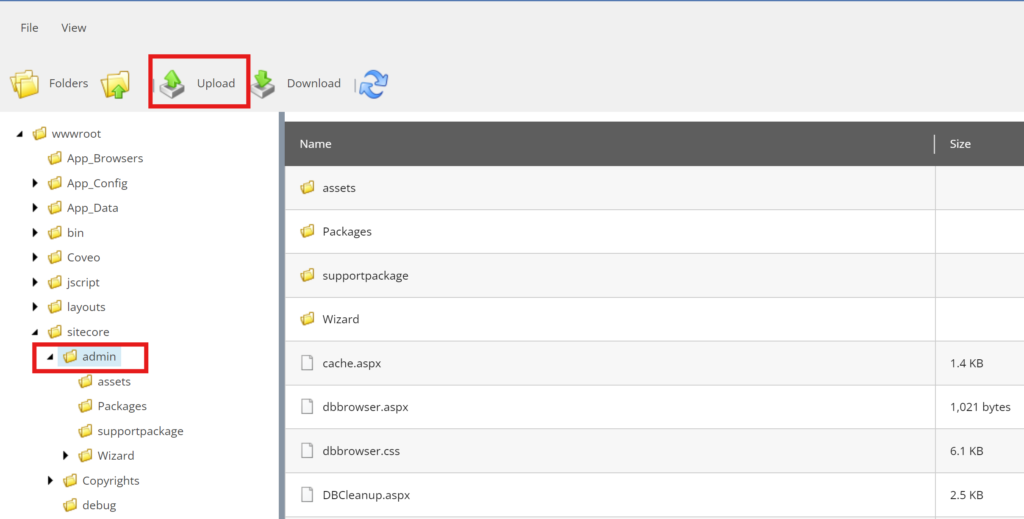
You can use Visual Studio to create and test this page in your local solution. You can copy the page to Sitecore Web Application in Internet Information Services (IIS) to /sitecore/admin/ or any other directory and access it through your CM URL as https://your-cm-hostname/sitecore/admin/MediaSize.aspx
In production or other environments where you may not have access to Sitecore directly, you can use Sitecore File Explorer tool https://your-cm-hostname/sitecore/shell/default.aspx?xmlcontrol=FileExplorer&sc_lang=en
Coming Up Next
In my next post, I’ll walk through the actual export script to export media items to disk within Sitecore’s constraints, and how to package and download the assets efficiently, please stay tuned.
Hashtags
#Sitecore #SitecoreMigration #MediaLibrary #medialibrarysize #SitecoreTips #CMSMigration #DotNetCMS #SitecoreAdmin #DevBlog #SitecoreDevelopment #TechTips