
I have recently been working on upgrading Sitecore 10.3.0 to 10.4.1 in a Sitecore Manager Cloud Containers environment. In 10.3.0 version Sitecore was using SearchStax to host solr, but with new installation they have shifted to on-prem Azure based solr installations.
Everything was working fine in Sitecore 10.3.0 but as soon as I installed the latest code to 10.4.1 and restored database (after running database upgrade scripts), the Solr index rebuild started failing with this error
This issue have also been shared by my Sitecore fellow in this blog post however in my case the difference is the Sitecore managed Cloud environment and also the fact the Solr is hosted in Azure and managed by Sitecore with me having no direct access to its file system.
Exception: SolrNet.Exceptions.SolrConnectionException
Message: <?xml version="1.0" encoding="UTF-8"?>
<response>

<lst name="responseHeader">
  <int name="status">400</int>
  <int name="QTime">0</int>
</lst>
<lst name="error">
  <lst name="metadata">
    <str name="error-class">org.apache.solr.common.SolrException</str>
    <str name="root-error-class">org.apache.solr.common.SolrException</str>
  </lst>
  <str name="msg">Current core has 2008 fields, exceeding the max-fields limit of 2000.</str>
  <int name="code">400</int>
</lst>
</response>

Source: SolrNet
   at SolrNet.Impl.SolrConnection.PostStream(String relativeUrl, String contentType, Stream content, IEnumerable`1 parameters)
   at SolrNet.Impl.SolrConnection.Post(String relativeUrl, String s)
   at SolrNet.Impl.LowLevelSolrServer.SendAndParseHeader(ISolrCommand cmd)
   at Sitecore.ContentSearch.SolrProvider.SolrFullBatchUpdateContext.Flush()
   at Sitecore.ContentSearch.SolrProvider.SolrFullBatchUpdateContext.Commit()
   at Sitecore.ContentSearch.SolrProvider.SolrFullBatchUpdateContext.Dispose(Boolean disposing)
   at Sitecore.ContentSearch.SolrProvider.SolrFullBatchUpdateContext.Dispose()
   at Sitecore.ContentSearch.AbstractSearchIndex.PerformUpdate(IEnumerable`1 indexableInfo, IndexingOptions indexingOptions)

Nested Exception

Exception: System.Net.WebException
Message: The remote server returned an error: (400) Bad Request.
Source: System
   at System.Net.HttpWebRequest.GetResponse()
   at HttpWebAdapters.Adapters.HttpWebRequestAdapter.GetResponse()
   at SolrNet.Impl.SolrConnection.GetResponse(IHttpWebRequest request)
   at SolrNet.Impl.SolrConnection.PostStream(String relativeUrl, String contentType, Stream content, IEnumerable`1 parameters)
Analysis and Sitecore Support
I opened a support ticket and as usual Sitecore team was quick to help. After some to and fro communication I managed to get the needed access and fix the issue which I will share below so that it can save time for others.
The error is quite obvious and there are two options to resolve this issue:
- Increase the Solr field limit:
- Edit the affected core’s solrconfig.xml file and increase the maxFields value.
- The file is located under the core folder, for example: [SOLR_DIR]\server\solr\[CORE_NAME]\conf\solrconfig.xml.
- After making changes, restart Solr. If necessary, restart Sitecore as well.
- Reduce the number of schema fields:
- Review your index field mappings and computed fields to ensure you are not unintentionally creating many unique field names (more details are provided in the next Q/A).
- Make sure the Solr managed schema for all Sitecore cores has been updated using the Sitecore Control Panel tool (Populate Solr Managed Schema), and then rebuild the indexes as described in the Solr setup documentation.
Since I am upgrading an existing solution therefore I didn’t have the time to even consider option 2 and I had to increase the Solr Field limit.
Steps to increase Solr max-fields with Solr hosted in cloud with no access to file system
Request IP Whitelisting from Sitecore
In order for you to be able to access Solr Admin UI, you will need to request Sitecore via Support ticket. You can find the solr URL in your Azure KeyVault in a key called solr-connection-string which looks like below. You need to send the URL after @ sign to Sitecore with your Public IP address and request to be whitelisted.
https://username:password@mcc-123456-xyz-solr.mcsitecore-deploy.com/solr;solrcloud=trueOpen Admin UI and Check Config and maxFields
Once whitelisted you should be able to open this URL https://mcc-123456-xyz-solr.mcsitecore-deploy.com/solr in browser and login with username and password which are the initial part of the URL separated by colon.
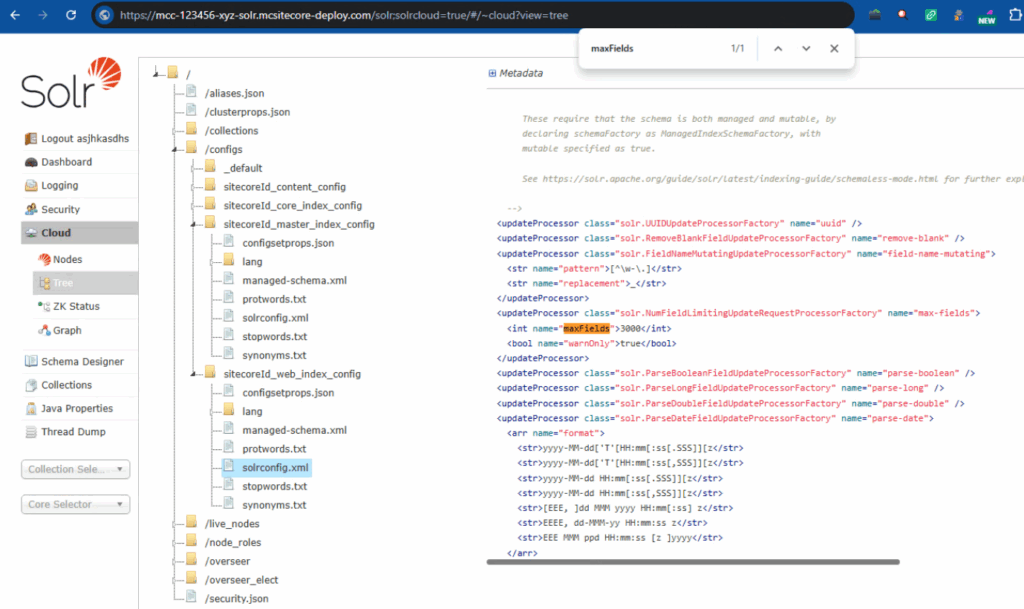
On the left menu, navigate to Cloud -> Tree -> /Configs and then select master or web config to see the current length of maxFields (please refer to screenshot above). This is the value that we want to update.
Update solrconfig.xml using Solr Admin API and reload Solr config
This steps below will help you update solrconfig.xml using Solr Admin API for a Solr instance hosted in Cloud when you do not have access to file system.
Step 1: Download solrconfig.xml from Solr using the URL below,
https://mcc-123456-xyz-solr-solr.mcsitecore-deploy.com/solr/sitecoreId_web_index/admin/file?file=solrconfig.xml&wt=raw
Make sure to update the index name and it must be correct as per your environment
Save the file as ‘solrconfig.xml’, you can simply save in browser by pressing Ctrl + S
Step 2: Open the downloaded ‘solrconfig.xml’ and change the maxFields to your desired value e.g. from 2000 to 3000
The new value must be higher than the erorr you got, make sure to Save the file.
Step 3: Update values in the script below and run it from Windows PowerShell
$SolrUser = "asjhkasdhs"
$SolrPassword = "au23jias$sad"
$TargetSolrUrl = "https://mcc-123456-xyz-solr-solr.mcsitecore-deploy.com"

$SolrCredential = New-Object System.Management.Automation.PSCredential `
($SolrUser,(ConvertTo-SecureString $SolrPassword -AsPlainText -Force))

$ConfigName = "sitecoreId_web_index_config" this must be the name you see in the Solr Admin UI
$ZipFilePath = "C:\Upgrade\solr\solrconfig.xml"

$uploadUrl = "$TargetSolrUrl/solr/admin/configs?action=UPLOAD&name=$ConfigName&filePath=solrconfig.xml&overwrite=true"

$uploadResponse = Invoke-RestMethod -Uri $uploadUrl -Method Post -Credential $SolrCredential
-InFile $ZipFilePath `
-ContentType "application/octet-stream"

Write-Host "Successfully uploaded $ConfigName to Solr"
Github URL: https://github.com/zaheer-tariq/Sitecore-Blog-Gists/blob/main/PowerShell/Solr/Update-Solr-Max-Fields.ps1
Step 4: Reload the Solr Config, by simply opening this URL in brower, make sure to update the index name in the URL
https://mcc-123456-xyz-solr-solr.mcsitecore-deploy.com/solr/admin/collections?action=RELOAD&name=sitecoreId_web_index
Step 5: Do it for other configs if needed e.g. master or core or custom
Validation
Open Solr Admin UI using this URL https://mcc-123456-xyz-solr.mcsitecore-deploy.com/solr in browser and login.
On the left menu, navigate to Cloud -> Tree -> /Configs and then select master or web config to see the current length of maxFields (please refer to screenshot above). This should show the updated maxFields value
You should not be able to build Solr indexes from Sitecore without any issues.
I’ve noticed that exceeding the max-fields limit often only becomes apparent after restoring databases or performing major upgrades, so your post does a great job of illustrating this scenario. It’s a helpful reminder of how environment changes, like moving to managed cloud containers, can expose these kinds of issues. Sharing these specific error details makes it easier for others to anticipate and troubleshoot similar problems.
Thanks for sharing this detailed account of the Solr Cloud max-fields issue during the Sitecore 10.4.1 upgrade. It’s a common challenge when moving to newer versions, especially in managed environments where direct access is limited. Your point about the field count exceeding the limit despite using Azure-hosted Solr highlights how critical it is to proactively review index configurations and field definitions before upgrading. This kind of real-world troubleshooting insight is exactly what helps the community avoid similar pitfalls.